Parking garages are designed to be forgettable. Every level looks the same, the signage is inconsistent, and you are usually thinking about the appointment you are late for rather than the letter painted on the pillar next to you.
The result is the parking lap: walking floor after floor pressing the key fob and listening for a beep. Here is how to shortcut that search, and how to make it unnecessary.
Six ways to find your car right now
- 1Check your phone first: if you had navigation running, your maps app may still show the last stopped position.
- 2Work outwards from the entrance you used, not from where you are standing — most people park within one level of the entrance they drove in through.
- 3Use the key fob systematically: walk the centre aisle of one level pressing lock, then move up or down. Sound carries badly between concrete floors, so cover each level separately.
- 4Look for the payment machine you walked to. People almost always park near the lift or stairwell they used.
- 5Check the ticket: many garages print the level or zone on the parking ticket itself.
- 6Ask at the office — most large garages have cameras and staff who deal with this several times a day.
The 5-second habit that prevents it
Every method above is recovery. Prevention takes five seconds: the moment you switch the engine off, save the spot and take one photo of the nearest pillar marker or level sign.
A GPS pin alone is not always enough in a garage — signal is poor under concrete and a pin cannot tell you which of five identical floors you are on. A pin plus a photo of "Level 3, Row F" solves both halves of the problem.

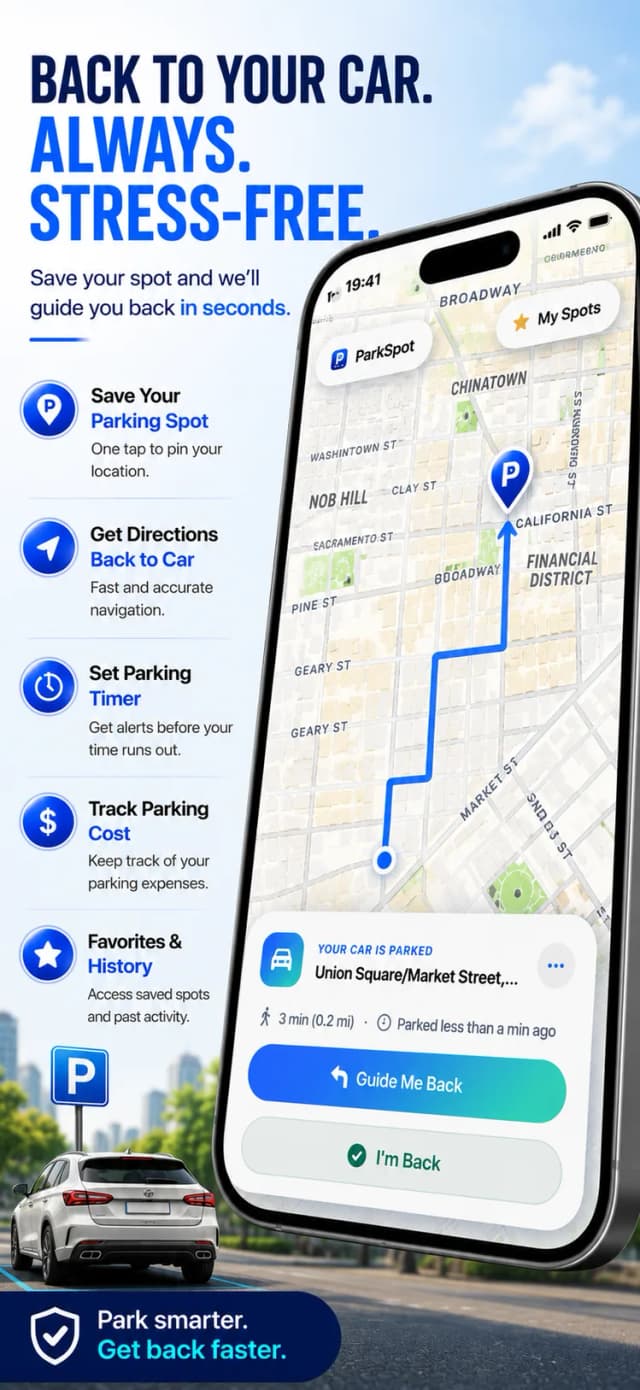
How to never lose your car with ParkSpot
- 1
Tap save as you switch off
ParkSpot records the GPS position and the street address of the garage before you even open the door.
- 2
Photograph the level marker
One photo of the pillar number or row letter answers the question GPS cannot: which floor.
- 3
Add the floor as a note
Type "P3, row F" into the note field — it appears next to the spot when you come back.
- 4
Follow the map out
On your way back, ParkSpot shows the pin and your live distance to the car.

Free to download on iPhone & iPad
Frequently asked questions
Does GPS work inside a parking garage?
Often only partially — thick concrete blocks satellite signal. That is why the saved address, your photo and a floor note matter as much as the pin itself.
Can I find my car if my phone was offline?
Yes. ParkSpot saves the position on your device, so the spot, photo and notes are there without a connection.